

Getting started
Set up FoldVault, one step at a time.
Ten short steps. Each one has a picture of what you’ll see. You don’t need to be technical.
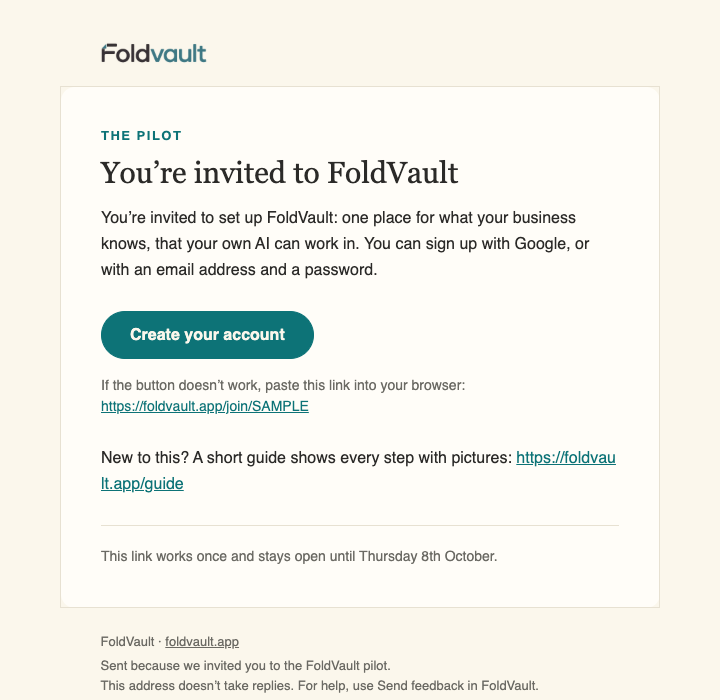
Step 1: Open your invitation
We'll send you an email called "Your invitation to FoldVault".
Press the green Create your account button.
The link works once. If it has run out, email hello@carlmumford.co.uk and we'll send a new one.
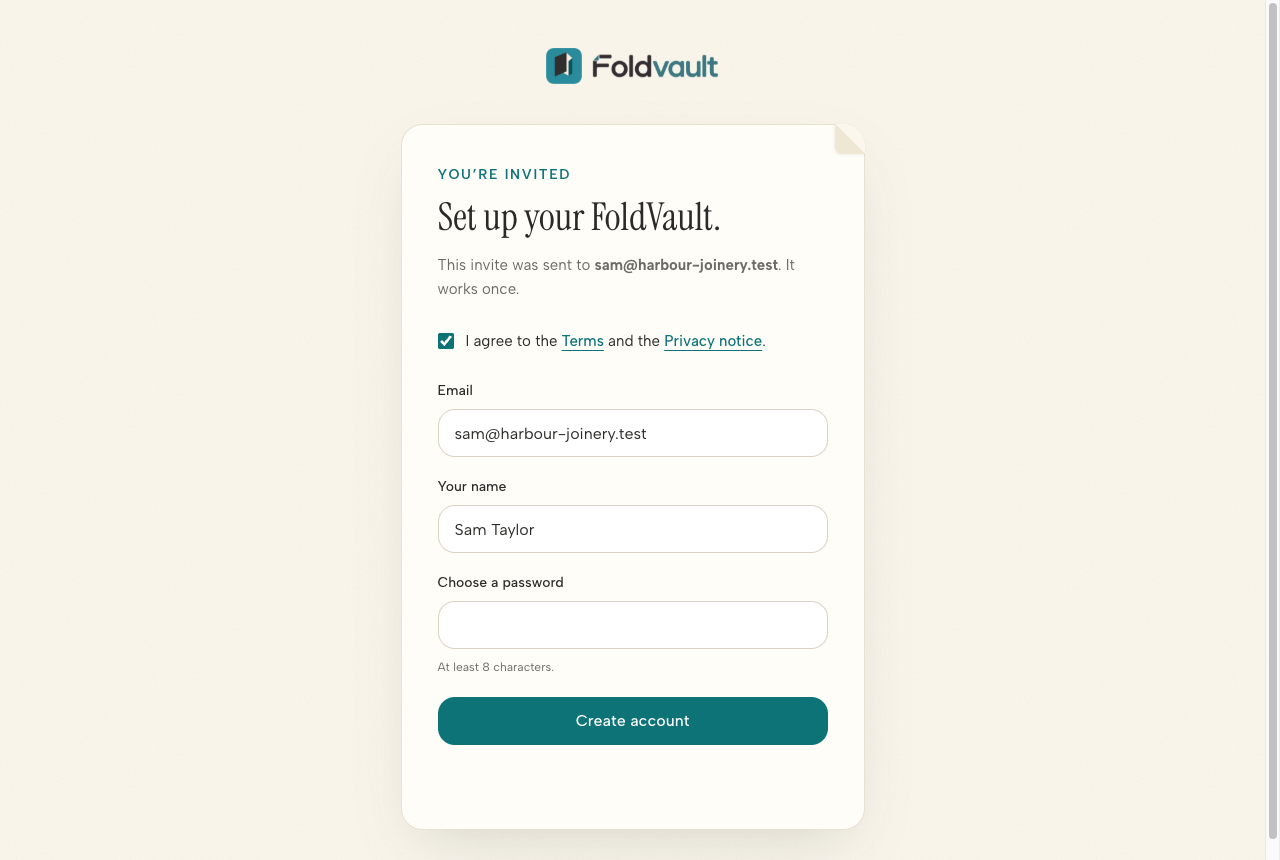
Step 2: Make your account
Tick the box to agree to the terms.
Then either press Continue with Google, or type your name and choose a password.
Press Create account.
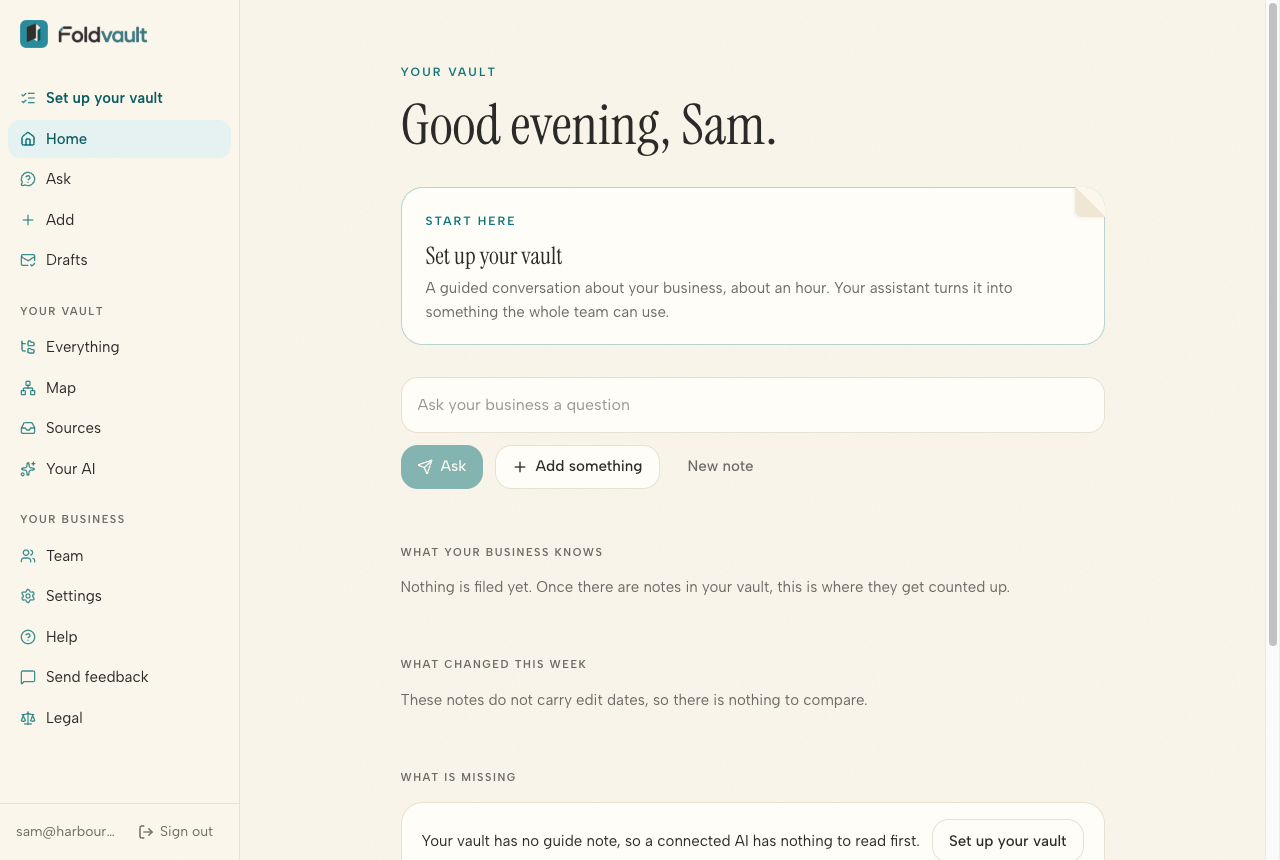
Step 3: Look around
This is your home page. The menu on the left takes you everywhere.
Your vault starts empty. That's normal.
Step 4: Tell FoldVault about your business
Press Set up your vault at the top of the menu.
It asks you simple questions about your business, in three short batches of four topics, and writes your answers into notes.
Go at your own pace. The progress bar shows how far you are, and you don't have to finish in one go.
Using your own Claude? Once it's connected (next step), you can ask it: "Set up my vault".
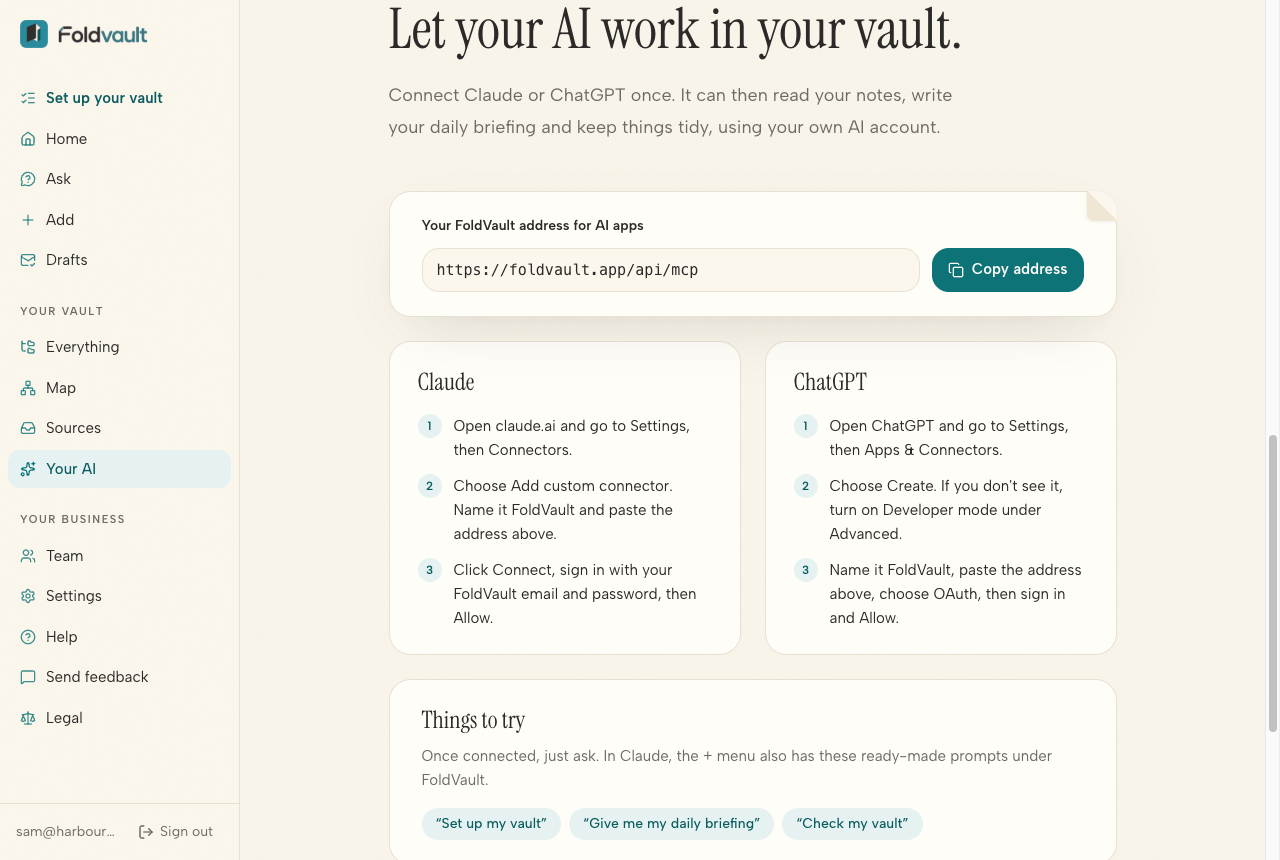
Step 5: Connect your AI
Press Your AI in the menu, then Copy address.
In Claude: open claude.ai, go to Settings, then Connectors. Choose Add custom connector, call it FoldVault and paste the address. Press Connect, sign in, then Allow.
In ChatGPT: go to Settings, then Apps & Connectors. Choose Create (if you can't see it, turn on Developer mode under Advanced). Call it FoldVault, paste the address, choose OAuth, then sign in and Allow.
Not every Claude or ChatGPT plan can add connectors. If you can't see the option, check your plan.
Step 6: Try it
Open a new chat in Claude or ChatGPT and ask:
"What do you know about my business?"
It reads your notes and answers from them. If it says it doesn't know much yet, add a few more things (next step).
Step 7: Add more as you go
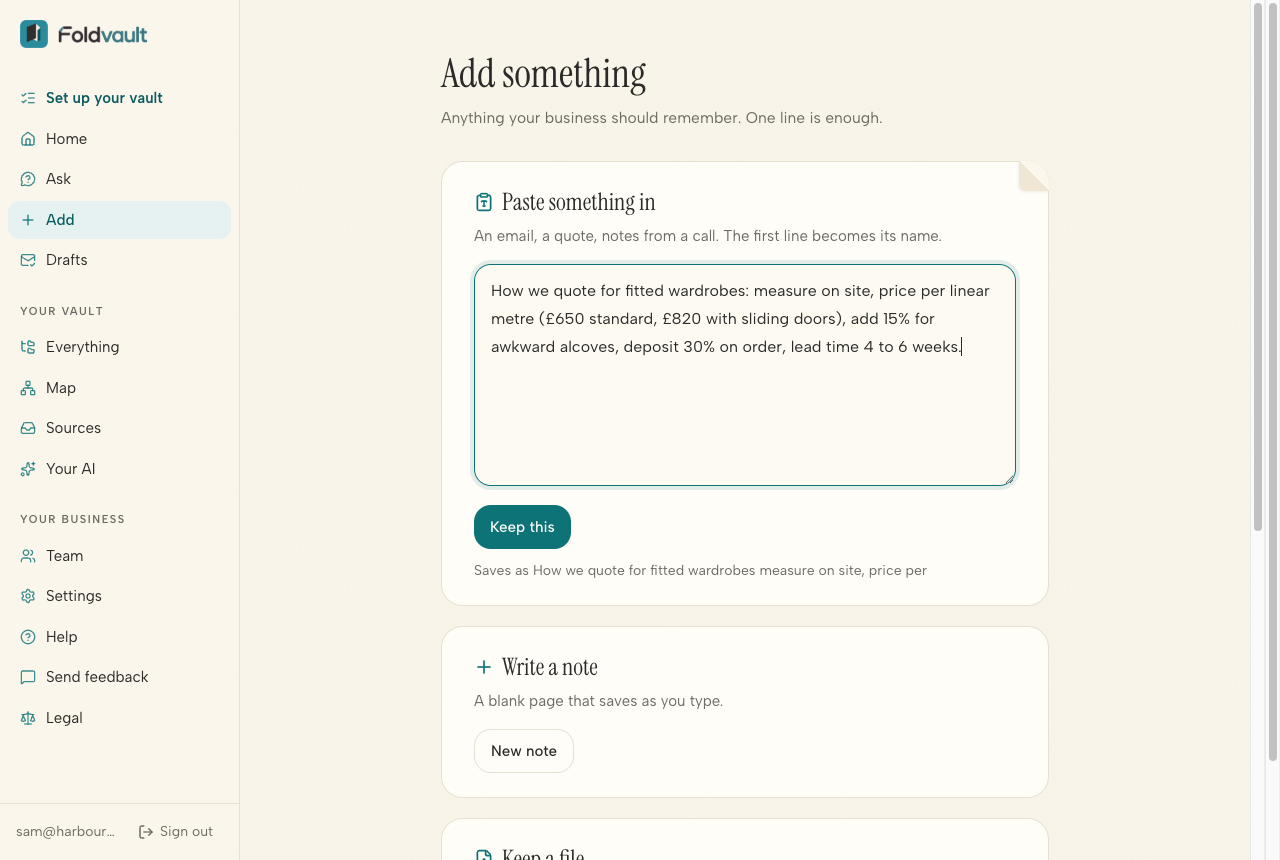
Press Add in the menu. Paste in an email, a price list or notes from a call, then press Keep this.
Or just ask your AI: "Save this to my vault".
You can also give your vault its own email address in Settings, then forward useful emails to it.
Step 8: Bring in your team
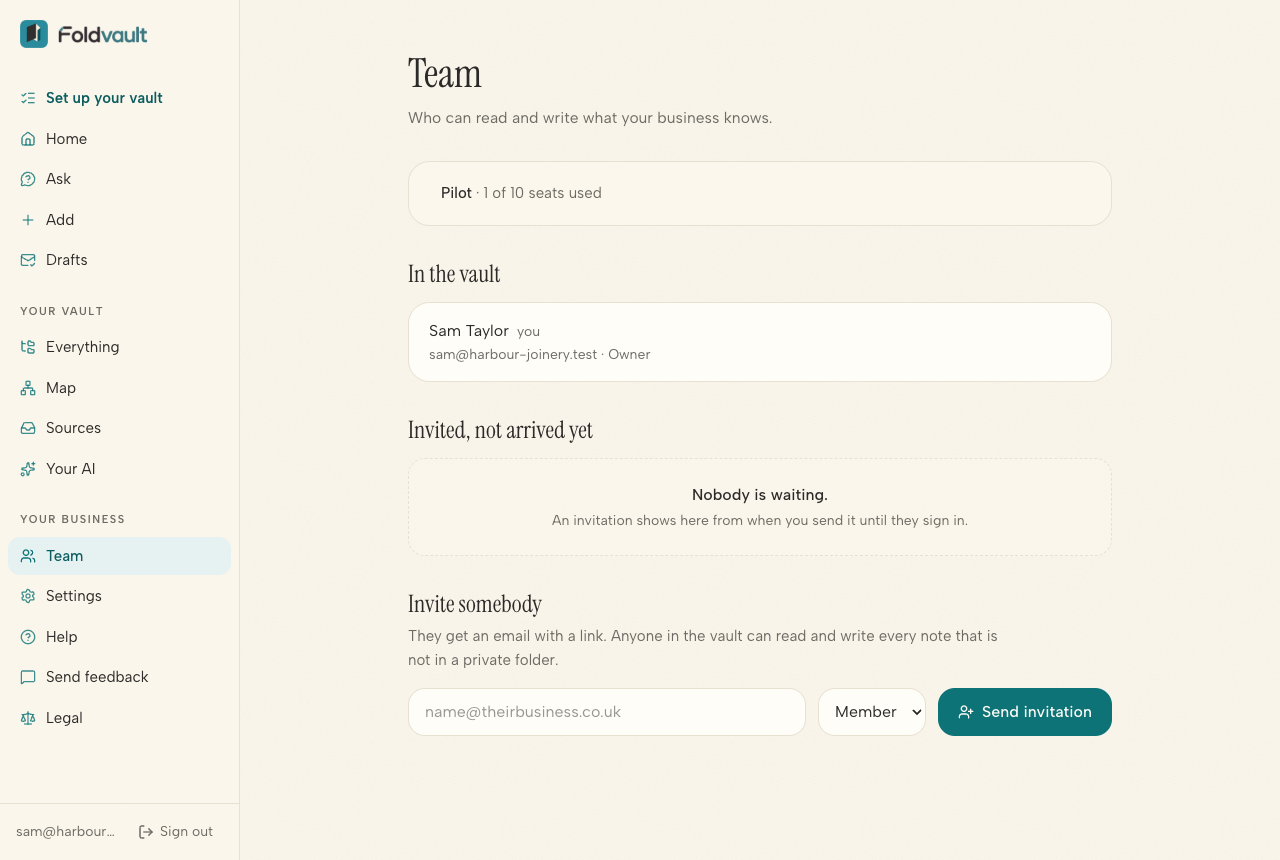
Press Team in the menu and invite people by email.
Everyone works from the same notes, and so does everyone's AI.
Step 9: Stuck? Tell us
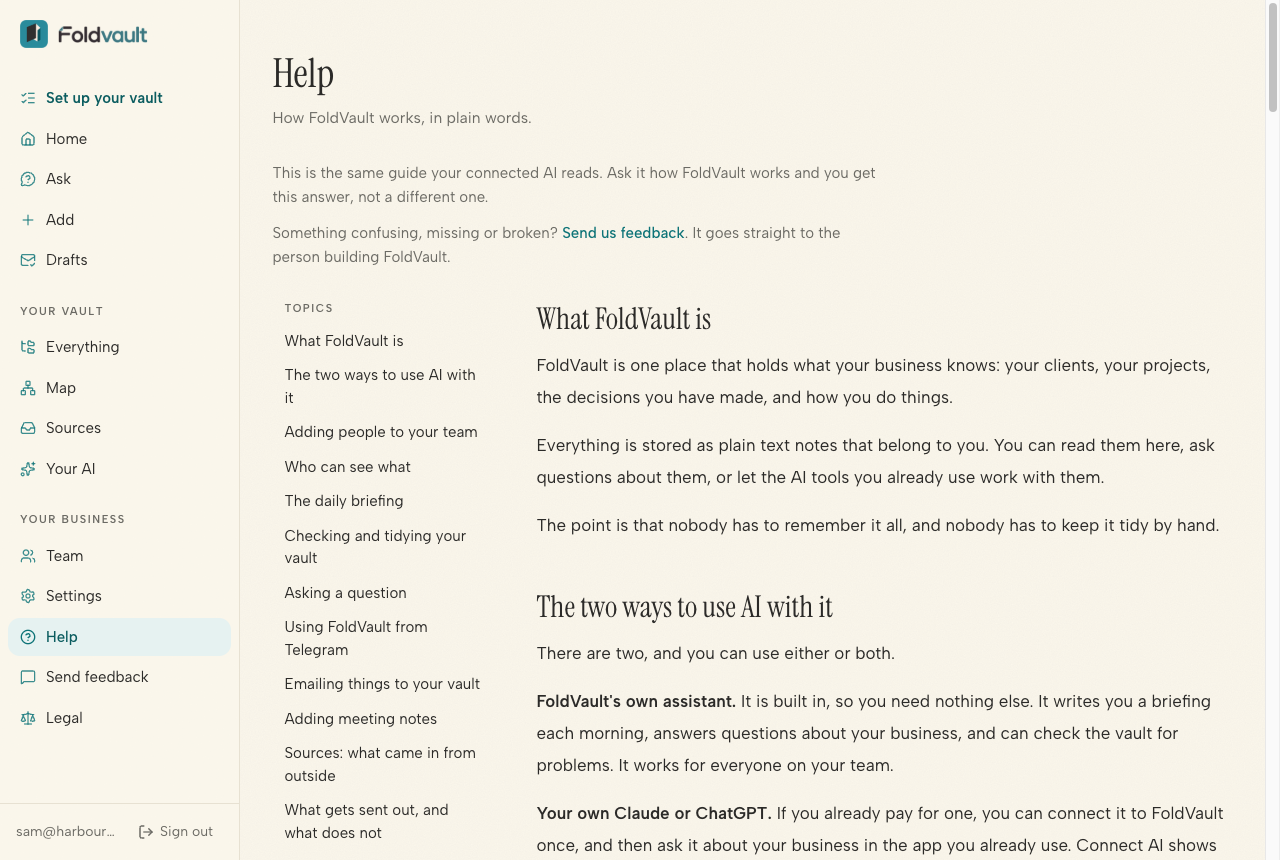
Press Send feedback in the menu. It goes straight to the person building FoldVault.
Help, in the menu, explains how everything works in plain words.
Step 10: Your notes are yours
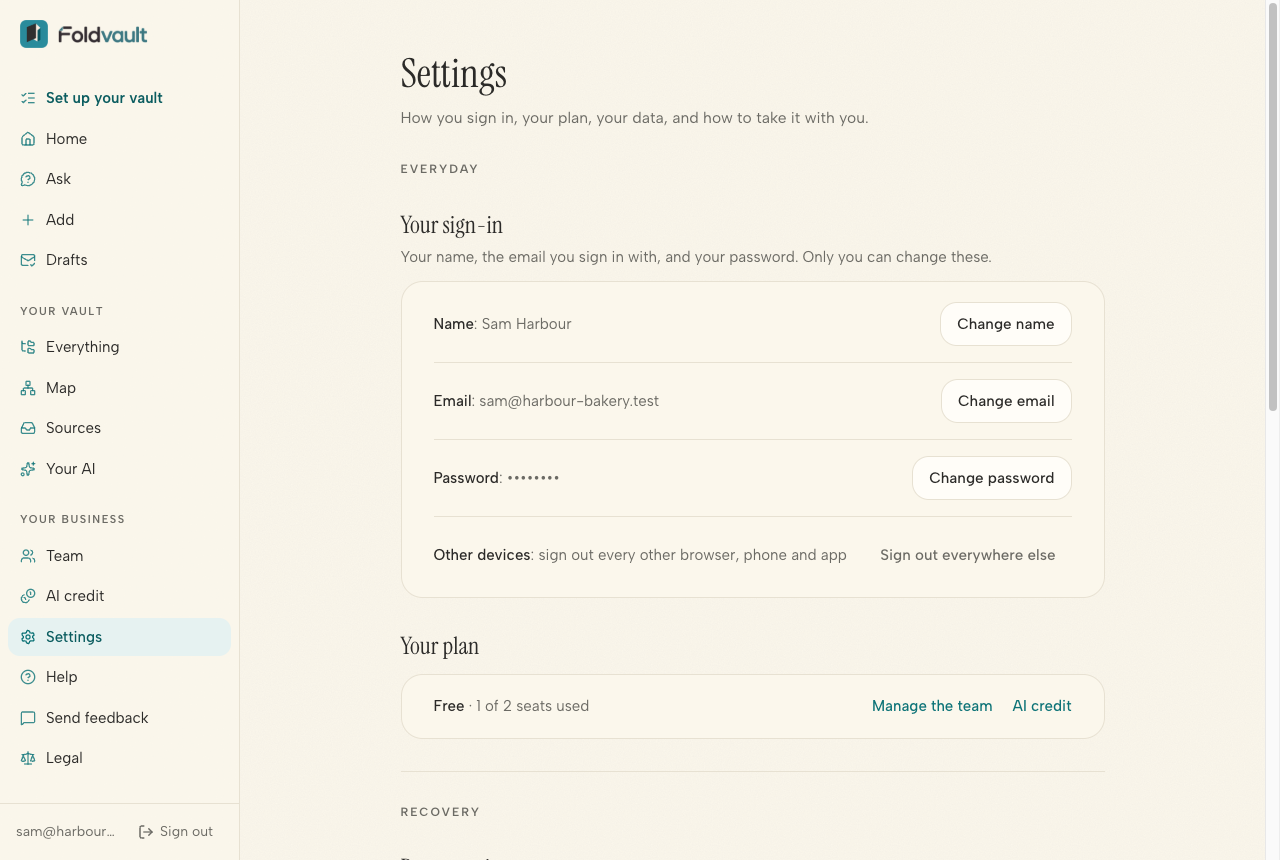
Press Settings in the menu, then Export everything, to download all your notes as ordinary files.
You can take a copy any time, and you can delete everything if you leave.
Settings is also where you change your name, the email you sign in with and your password.
That’s it.
The more your business puts in, the more useful your AI gets. Start small: one price list, one “how we do this” note.